
Every Engineer Thinks They Understand SSH Until Something Goes Wrong
What’s really happening during the SSH handshake, why it fails in production, and how to debug it without guessing.

SSH works. Keys authenticate. Sessions open. Boom. Tunnels connect.
Then one day you’re staring at a cryptic “Connection refused” error on a server you accessed yesterday, your incident channel is blowing up, and you realize you’ve been treating SSH like magic for your entire career.
I’ve witnessed someone spend three hours debugging what turned out to be a known_hosts file that had cached a stale host key after an EC2 instance replacement. Three hours. The server, the network, the keys were all fine. The problem was a single line in a hidden file on their laptop, and they never thought to look there because SSH just works until it doesn’t.
The thing about SSH is that it’s so reliable in normal operation that most of us never build a mental model of what’s actually happening. We copy-paste key generation commands from an AI agent or Stack Overflow, we add our public key to authorized_keys, we connect. Maybe we set up an SSH config file at some point. Maybe we’ve forwarded a port or two.
But the actual handshake? The algorithm negotiation? The way host verification actually prevents man-in-the-middle attacks?
Most engineers can’t diagram that flow under pressure.
In order for that to happen, let’s understand what’s happening under the hood so that when it breaks, and it will break, you know where to look.
Hi I’m Maxine, a cloud infrastructure engineer who spends my days scaling databases, debugging production incidents, and writing about what actually works in production.
You can get a copy of my LLMs for Humans: From Prompts to Production (at 30% off right now) ←
Or for free when you become a paid subscriber.
It’s 20 chapters of practical applied AI with real production context, not theory. And it’ll help you get smarter about using AI tools in infrastructure workflows.

Checkout my work:
Plus, if you’re thinking about making a career move into cloud or DevOps and want a structured path to get there, get a copy of my The DevOps Career Switch Blueprint.
Okay, let’s get into it
The Handshake Nobody Diagrams
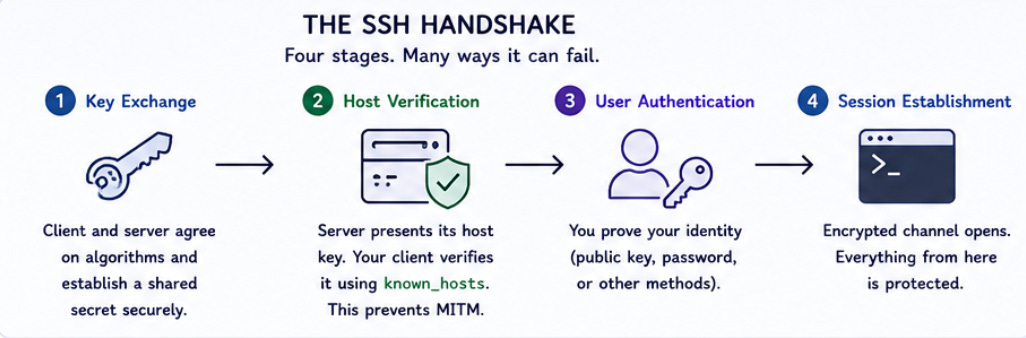
When you type ssh user@host, you’re kicking off a negotiation that happens so fast you never notice it. But every step is a potential failure point.
Protocol version exchange: Your client and server agree on SSH-2. This almost never fails anymore because SSH-1 is ancient history, but I’ve seen it happen with truly legacy embedded systems.
Algorithm negotiation: This is where things get interesting. Client and server exchange lists of supported algorithms for key exchange, encryption, MAC, and compression. They pick the first match from the client’s list that the server supports.
debug1: kex: algorithm: curve25519-sha256
debug1: kex: host key algorithm: ssh-ed25519
debug1: kex: server->client cipher: chacha20-poly1305@openssh.com
debug1: kex: client->server cipher: chacha20-poly1305@openssh.com
Key exchange → Host verification → User authentication → Session establishment
That’s the flow. Four stages, each with its own failure modes.
Key exchange uses Diffie-Hellman variants to establish a shared secret without ever transmitting it. The beauty here is that even if someone captures every packet, they can’t derive the session key. The math works.
Host verification is where your client checks whether this server is who it claims to be. The server presents its host key, and your client looks it up in known_hosts. First connection? You get that fingerprint prompt. Mismatch? You get the scary warning.
User authentication is what most people think SSH is. Public key auth, password auth, keyboard-interactive. The server challenges, you prove identity.
Session establishment opens the encrypted channel. From here, everything is wrapped in that negotiated encryption.
Understanding this flow matters because each stage fails differently. Algorithm negotiation failures look nothing like authentication failures, but the error messages are often equally unhelpful.
What Your SSH Config Is Actually Doing
Most engineers have an SSH config file. Few understand what it’s actually doing.
Host production-*
    User deploy
    IdentityFile ~/.ssh/production_ed25519
    IdentitiesOnly yes
    StrictHostKeyChecking accept-new
    ServerAliveInterval 60
    ServerAliveCountMax 3
Let me break down the parts that bite people:
IdentitiesOnly yes: This is critical in environments with multiple keys. Without it, your SSH agent offers every loaded key to the server, one by one, until one works or you hit the MaxAuthTries limit. I’ve watched engineers get locked out of servers because their agent had six keys loaded and the server was configured for MaxAuthTries 3. The right key was fourth in line.
StrictHostKeyChecking accept-new: This accepts new host keys automatically but still warns on changes. It’s a middle ground between the dangerously permissive no and the interactively annoying ask. In automated contexts, you want this or you want to pre-seed known_hosts. Never no in production.
ServerAliveInterval and ServerAliveCountMax: These send keepalive packets through the encrypted channel. Critical for long-running sessions through NAT or stateful firewalls that timeout idle connections. Without them, your session silently dies and you don’t find out until you try to type something.
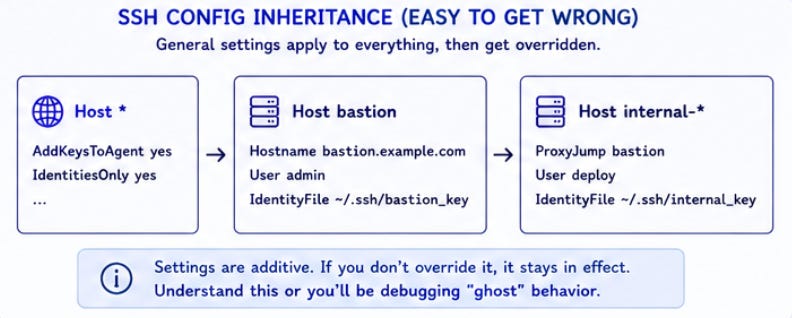
Here’s the config inheritance that confuses people:
Host *
    AddKeysToAgent yes
    IdentitiesOnly yes

Host bastion
    Hostname bastion.example.com
    User admin
    IdentityFile ~/.ssh/bastion_key

Host internal-*
    ProxyJump bastion
    User deploy
    IdentityFile ~/.ssh/internal_key
The Host * block applies to everything, then more specific blocks override. But the overriding is additive for most options. If you set IdentitiesOnly yes globally and don’t set it in a specific block, it stays set. This is usually what you want. Usually.
The Agent Forwarding Trap
Agent forwarding is powerful.
It’s also a security hole that most engineers don’t fully appreciate.
When you enable agent forwarding with -A or ForwardAgent yes, you’re allowing the remote server to make requests to your local SSH agent. You connect to bastion, bastion can use your keys to connect elsewhere on your behalf.
Convenient. Also dangerous.
Here’s what actually happens: your SSH agent creates a Unix socket. When you forward it, the remote server gets access to that socket. Anyone with root on that server can use your forwarded agent to authenticate as you to any system your keys can access.
I learned this the hard way when a compromised staging server was used to pivot into production using a forwarded agent from an engineer’s session. The attacker didn’t need to steal keys. They just needed to wait for someone to forward their agent and then use the socket.
ProxyJump is almost always better:
Host internal-server
    Hostname 10.0.1.50
    ProxyJump bastion.example.com
With ProxyJump, your local client handles all the authentication. The bastion just forwards TCP traffic. Your keys never leave your machine, not even as agent socket access.
There are legitimate uses for agent forwarding. Git operations from remote servers, for instance, when you can’t set up deploy keys. But those should be explicit, time-limited, and on trusted systems. Not your default.
Failure Modes That Can Actually Happen
These are the ones I see over and over in production environments:
“Connection refused” immediately on connect
Technical cause: The SSH daemon isn’t listening. Either sshd isn’t running, it’s bound to a different port, or a firewall is rejecting before the packet reaches the daemon.
Fix: Check if sshd is running (systemctl status sshd), verify the port (ss -tlnp | grep ssh), check host-level firewall (iptables -L -n), check security groups or cloud firewall rules.
“Connection timed out” after a long wait
Technical cause: The packet isn’t reaching the server or the response isn’t reaching you. Network-level issue. Could be routing, could be security groups, could be the server being unreachable.
Fix: Trace the path. Can you ping? Can you reach other ports? Is there a load balancer or NAT in the way? Cloud environments love to silently drop traffic that doesn’t match security group rules.
“Permission denied (publickey)” even though your key should work
Technical cause: At least a dozen possibilities. Wrong key offered, key not in authorized_keys, authorized_keys permissions wrong, home directory permissions wrong, SELinux context wrong, username mismatch.
Fix: Use ssh -vvv to see which keys are offered and which the server accepts. Check server-side with journalctl -u sshd -f while attempting connection. Most common cause I see: the server’s authorized_keys has trailing whitespace or was copy-pasted with encoding issues.
“WARNING: REMOTE HOST IDENTIFICATION HAS CHANGED”
Technical cause: The host key doesn’t match what’s in known_hosts. Either the server was replaced/reimaged, or someone is intercepting your traffic.
Fix: Verify through out-of-band channel that the server legitimately changed. Cloud console, different network path, colleague confirmation. Then ssh-keygen -R hostname to remove the old entry. Never blindly remove entries in production.
Connection hangs after “pledge: network” or similar
Technical cause: Often MTU issues causing packet fragmentation problems in the encrypted stream. Also common with broken QoS or traffic shaping that mishandles SSH.
Fix: Try ssh -o "Ciphers=aes128-ctr" to use a cipher with different packet characteristics. Or investigate MTU path with ping -M do -s 1472 hostname.
Agent forwarding works but authentication still fails
Technical cause: The remote server can reach your agent but the key your agent has isn’t authorized for the next hop. Or the socket permissions on the remote side are wrong.
Fix: On the remote host, ssh-add -l should show your keys. If empty, forwarding isn’t working. If populated but wrong keys, that’s your answer.
The Certificate Authority Pattern Most Teams Ignore
Here’s what nearly every team does: generate keys, copy public key to authorized_keys, repeat for every user and every server.
Here’s what actually scales: SSH certificate authorities.
The idea is simple.
Instead of distributing public keys to servers, you distribute a CA public key. Then you sign user keys with that CA. Servers trust any key signed by the CA.
# Generate CA key pair (do this once, guard the private key)
ssh-keygen -t ed25519 -f /etc/ssh/ca_user_key -C "user-ca@example.com"

# Sign a user's public key
ssh-keygen -s /etc/ssh/ca_user_key -I "alice@example.com" -n alice,deploy -V +52w ~/.ssh/alice_id_ed25519.pub
The -n flag specifies principals. These are the usernames this certificate can authenticate as. The -V flag sets validity. That signed certificate now works on any server that trusts your CA.
Server-side configuration:
TrustedUserCAKeys /etc/ssh/ca_user_key.pub
AuthorizedPrincipalsFile /etc/ssh/authorized_principals
# /etc/ssh/authorized_principals
deploy
Now any certificate signed by your CA with the “deploy” principal can authenticate as the deploy user. No authorized_keys management.
User joins the team? Sign their key.
User leaves? Revoke the certificate or just don’t re-sign when it expires.
The operational benefits are enormous once you’re past about 20 servers. Before that? Probably not worth the setup overhead, teams try to implement this at 10 servers and regret the complexity, but teams at 200 servers wish they’d done it sooner.
Terraform and SSH Key Management
Here’s where things get uncomfortable.
Terraform is great at creating cloud resources, it’s awkward at managing SSH keys, especially at scale.
The aws_key_pair resource problem:
resource "aws_key_pair" "deploy" {
  key_name   = "deploy-key"
  public_key = file("~/.ssh/deploy_key.pub")
}
This works. It also puts your public key path in state, creates drift if anyone changes the key outside Terraform, and doesn’t help you rotate keys.
The user-data approach:
resource "aws_instance" "app" {
  # ...
  user_data = <<-EOF
    #!/bin/bash
    echo "${var.ssh_public_key}" >> /home/deploy/.ssh/authorized_keys
    chown deploy:deploy /home/deploy/.ssh/authorized_keys
    chmod 600 /home/deploy/.ssh/authorized_keys
  EOF
}
This runs once at instance creation, it doesn’t handle key rotation or handle multiple keys cleanly. And user-data execution failures are silent from Terraform’s perspective.
What actually works in production:
Separate key distribution from instance provisioning. Use Terraform for infrastructure, use a configuration management tool or secrets manager for SSH key distribution.
resource "aws_instance" "app" {
  # ...
  tags = {
    ssh_key_group = "production-deploy"
  }
}
Then have a separate process that reads that tag and ensures the right keys are present. Could be Ansible. Could be an SSM document. Could be a Lambda triggered by instance state changes. The point is decoupling.
I’ll be honest: I’ve seen this go both ways. Some teams get away with the user-data approach for years because their instances are immutable and they just rotate AMIs. Others hit key rotation requirements and scramble. Know your compliance environment.
The Quiet Wins
When SSH authentication is properly architected, you stop thinking about it. That’s the payoff.
The metrics:
“Permission denied” tickets drop to near zero
Key rotation becomes a non-event
New engineer onboarding goes from hours to minutes
Offboarding actually removes access instead of maybe removing access
The hidden win is the audit trail.
With certificate-based auth, you know exactly who has access and when it expires.
With scattered authorized_keys files, you’re guessing.
I worked with a team that moved from manual key management to a certificate authority setup. Six months later, they passed a SOC 2 audit specifically because they could demonstrate key lifecycle management. The auditor asked “how do you ensure access is removed when someone leaves?” and the answer was “certificates expire, we don’t re-sign, done.” That conversation took five minutes. The year before, with authorized_keys, it took three weeks of archaeology.
The absence of problems is hard to celebrate. But when you’re not debugging SSH in the middle of the night, when you’re not manually editing authorized_keys on 50 servers, when you’re not explaining to security why a former contractor might still have access... that’s the win.
What’s your worst SSH debugging story?
I’ve shared the known_hosts saga, but I know there are worse ones out there.
With Love and DevOps,
Maxine
If you made it this far and you’re managing cloud infrastructure with AWS, you might want to keep this one close too.
AWS Certified Solutions Architect Study Guide
is where I start people who are new to cloud or who understand it conceptually but haven’t had to debug it in a real environment yet. It covers the mental model behind declarative AWS infrastructure so that articles like this one make sense end to end, not just the code snippets.

And if you’re working with AI in your stack or trying to understand where LLMs actually fit in a production system without the hype, LLMs for Humans: From Prompts to Production is the guide I wish existed when I started. Written by an engineer for engineers, covering RAG, function calling, and the operational reality of running AI in real systems.

Let’s stay connected
I post about cloud infrastructure, DevOps, and AI in production a few times a week on LinkedIn.
The real stuff: what I’m debugging, what I’m deploying, and the occasional thing that broke in a way nobody documented anywhere.
Come say hi. I actually respond.
Last Updated: May 2026
Sources and Further Reading
SSH Certificate Authentication - Engineering Blog, Facebook
SSH Certificates - Smallstep Documentation